

Table of Contents
- How AI Image Generation Works
- Tips for Better AI Art Prompts
- Step-by-Step Guide to Generating Your Custom AI Wall Art
- How to Upscale AI Images for Wall Art
- Preparing Files for High-Quality Printing
- Selecting Print Materials and Framing Options
- AI Art Copyright Laws and Legal Considerations
- Frequently Asked Questions
Last Updated: September 3, 2026
How AI Image Generation Works
AI image generation creates visual artwork from text descriptions using deep learning models trained on millions of images. These generative models learn patterns, styles, and visual concepts, then synthesize entirely new images based on your written prompts. The technology uses a diffusion process, which starts with random noise and progressively refines it into coherent imagery that matches your description.
The real power lies in flexibility. You're not selecting from templates or existing designs, you're instructing the AI to create something unique to your vision. At Vireous.Shop, we've integrated DALL-E 3 to let creators generate custom designs directly from natural language prompts, eliminating the barrier between imagination and execution. The AI interprets your words, considers artistic style, composition, color palette, and subject matter, then renders a finished image in seconds.

Understanding how this works matters because it changes how you approach prompting. The AI doesn't "understand" like a human does, it recognizes patterns and relationships between concepts. A prompt describing "a Victorian steampunk airship made of copper with golden gears" works because the model has learned what Victorian aesthetics look like, what steampunk means visually, and how copper and gold appear in images. The more specific your language, the more accurately the AI can match your intent.
Tips for Better AI Art Prompts
Writing effective prompts is a skill that improves with practice. The difference between mediocre and gallery-quality artwork often comes down to how precisely you describe what you want.
Start with the subject. Be specific: "a golden retriever sitting in autumn leaves, looking directly at the camera" rather than just "a dog." Include details about pose, environment, and context.
Next, specify the art style. Mention styles like "oil painting," "watercolor," "digital illustration," or reference specific movements: "Art Deco," "vintage travel poster," "Japanese woodblock prints." Style descriptors dramatically shift the final output.
Lighting and mood matter tremendously. Describe how light falls on your subject: "soft diffused morning light," "harsh studio lighting with deep shadows," or "neon-lit cyberpunk atmosphere." Color palette guidance helps too: "warm earth tones," "cool blues and purples," "high contrast black and white."
Composition details improve results significantly. Tell the AI about framing: "wide landscape orientation," "close-up portrait," "bird's-eye view." Include depth information: "shallow depth of field with blurred background" or "sharp focus throughout."
Avoid vague modifiers. Don't say "beautiful" or "amazing", the AI doesn't know what you mean. Instead, be descriptive: "intricate detail," "photorealistic," "highly detailed," "minimalist," or "bold graphic style."
Step-by-Step Guide to Generating Your Custom AI Wall Art
Creating custom AI wall art involves defining your vision, refining prompts, selecting the best output, and preparing files for printing.
Step 1: Define Your Vision and Style
Before you write a prompt, clarify what you actually want. Ask yourself: What's the primary subject? What mood should it convey? Where will it hang? What existing decor does it need to complement?
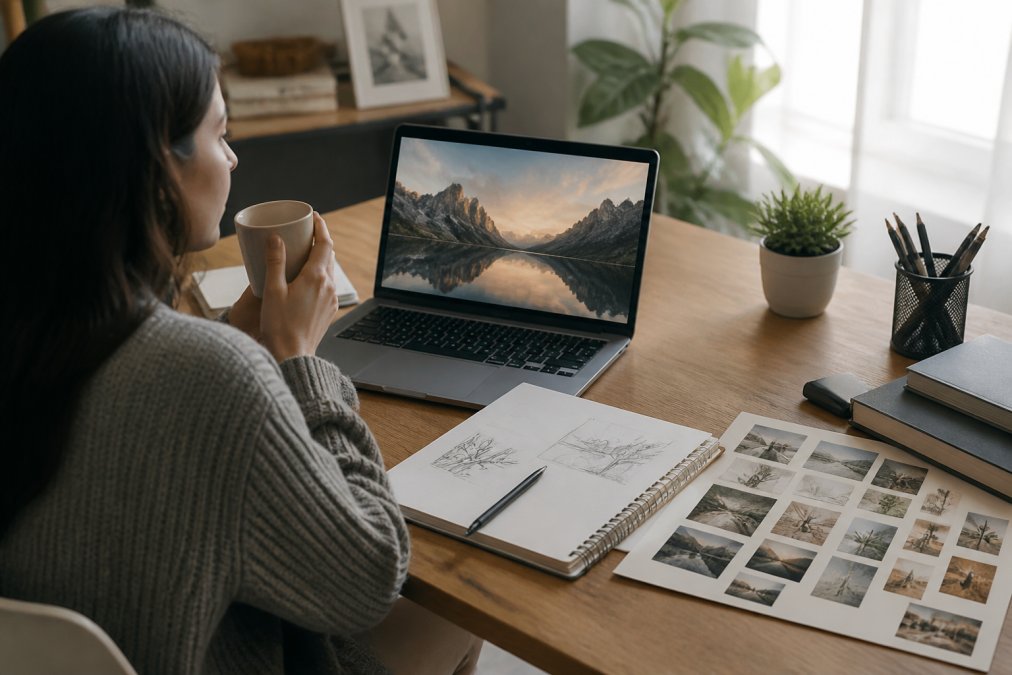
Gather inspiration. Create a mood board using images, color palettes, and artistic references that resonate with you. If you love the composition of a particular painting or the color scheme of a photograph, note those details, they become prompt material.
Consider dimensions and aspect ratio. Wall art comes in various formats: square (1:1), landscape (16:9 or 3:2), portrait (9:16), or panoramic. Knowing your target dimensions before generating helps you avoid wasting time on images you'll need to crop or distort later.
Think about the final medium. Are you printing on canvas, metal, acrylic, or paper? Different materials handle different styles better. Detailed photorealistic work looks stunning on metal. Painterly styles suit canvas. Minimalist designs work on any surface.
Step 2: Write and Refine Your Prompt
Start with a clear subject statement: "A Victorian mansion on a misty hillside at sunset." Then layer in details systematically.
Add artistic style: "painted in the style of impressionist oil paintings with visible brushstrokes." Include lighting: "golden hour light casting long shadows across the grounds." Specify mood: "romantic and nostalgic, slightly ethereal." Mention technical qualities: "highly detailed, professional quality, museum-worthy."
Read your complete prompt back. Does it paint a clear picture? Generate a test version and review the output against your vision. What worked? What missed the mark? Refine your prompt based on what you see and generate again.
This iteration cycle is normal. Most creators go through 3-5 generations before landing on something they love.
Step 3: Generate Multiple Variations
Generate at least 4-6 variations of your best prompt. You'll discover that subtle differences in generated images reveal which elements resonate most with you. Sometimes the AI will produce something unexpected that's even better than what you imagined. print digital art.
Save all variations. You might not use the runner-up today, but you may want to revisit it later.
Step 4: Select and Edit Your Final Image
Choose the variation that best matches your vision. Before sending it to print, consider basic edits. Most image editors let you adjust brightness, contrast, saturation, and sharpness.
Crop if needed to match your target dimensions. Check the image at 100% zoom for any artifacts, distortions, or areas where the AI struggled. For wall art, viewers typically stand 3-6 feet away, so tiny imperfections disappear.
Export your final image in the highest quality available. This becomes your master file for upscaling and printing.
How to Upscale AI Images for Wall Art
AI-generated images often come at standard resolutions like 1024x1024 pixels. For wall art larger than about 8x10 inches, you'll need to upscale to maintain print quality. Upscaling means enlarging the image while preserving or improving sharpness and detail.
Modern upscaling uses AI-powered image interpolation to intelligently add detail and maintain sharpness (peer-reviewed research). Tools like Topaz Gigapixel AI, Adobe Super Resolution, and specialized upscaling services analyze your image and reconstruct missing information based on patterns in existing pixels.
If you plan to print an 18x24 inch canvas, you need roughly 4320x5760 pixels at 300 DPI (dots per inch). Starting with a 1024-pixel image means upscaling about 4-5 times. Quality upscaling software can handle this without visible degradation.
Upscale before color conversion. Work with your RGB master file at high resolution, then convert to CMYK for printing. Test upscaling on a small section first if you're unfamiliar with the software.
Preparing Files for High-Quality Printing
Professional printing requires files in specific formats and specifications.
Understanding DPI and Resolution Requirements
DPI (dots per inch) measures print resolution. For wall art, 300 DPI is the professional standard. Calculate your required pixel dimensions using this formula: width in inches × 300 DPI = width in pixels. For a 24-inch wide print, you need 7200 pixels width.
Most printing services accept files at 150-300 DPI. Below 150 DPI, prints look noticeably pixelated and blurry (adobe.com). For canvas prints, 150 DPI is often acceptable because canvas texture masks minor resolution issues. For metal or acrylic prints with glossy surfaces, stick to 300 DPI.
Color Profile Conversion: RGB to CMYK
Your AI-generated image starts in RGB color space (Red, Green, Blue). Print uses CMYK (Cyan, Magenta, Yellow, Black) because inks absorb light differently than screens emit it.
This conversion matters because RGB and CMYK have different color gamuts. Some vibrant colors you see on screen don't exist in CMYK. Reds shift slightly orange. Blues become slightly purple.
Convert your image to CMYK before sending to print. Use your image editor's color conversion tools and preview the CMYK version to see how colors will shift. If certain colors are critical, adjust them before conversion by boosting saturation slightly in RGB to compensate.
Save your final file as a TIFF or high-quality PDF with CMYK color profile embedded.
Selecting Print Materials and Framing Options
The material you choose dramatically affects how your AI wall art looks and feels.
Canvas prints offer a traditional fine art appearance. The fabric texture adds depth and reduces glare. Canvas works beautifully for painterly styles and impressionistic AI art. It's durable, affordable, and forgiving of minor imperfections.
Metal prints create a sleek, modern aesthetic. Colors appear more vivid on metal because the surface is reflective. Metal works exceptionally well for photorealistic AI art and high-contrast designs. The material is extremely durable and resistant to fading.
Acrylic prints sit between canvas and metal aesthetically. The print adheres to the back of acrylic, creating a luminous quality. Colors pop with vibrant intensity. Acrylic has a contemporary gallery feel and works for nearly any style.
Fine art paper prints suit detailed, intricate designs. Matte finishes feel more traditional, while glossy papers enhance color saturation. Paper prints are cost-effective and ideal for testing designs before committing to expensive materials.
Framing adds another dimension. Wooden frames suit traditional and rustic styles. Metal frames complement modern designs. Floating frames create a contemporary gallery effect. Consider your space carefully, a vibrant, detailed AI artwork in a minimalist room needs a simple frame or no frame.
AI Art Copyright Laws and Legal Considerations
The legal landscape around AI-generated art is still evolving. When you generate an image using Vireous.Shop powered by DALL-E 3, you typically own the output image. You can print it, display it, and modify it.
Copyright protection for AI art exists in most jurisdictions, but with nuances. The U.S. Copyright Office has stated that purely AI-generated works without human creative direction may not qualify for copyright protection (copyright.gov). However, if you've directed the creative process through detailed prompts and selections, you likely have stronger claims to ownership.
Commercial use rights matter if you're selling merchandise featuring AI art. Vireous.Shop's integration with OpenAI's technology includes commercial usage rights for generated images, meaning you can sell products featuring your AI creations.
Be cautious about using copyrighted styles. Prompts like "in the style of [famous artist name]" raise questions about style infringement. For commercial use, consider generic style descriptors instead: "oil painting style" rather than "in the style of Van Gogh."
Check your platform's terms of service regarding training data. Some platforms may use your generated images to improve their models. If privacy matters, review these policies before generating sensitive or proprietary designs.
Creating custom AI wall art transforms imagination into tangible, displayable work. The process combines technical understanding, prompting, upscaling, color conversion, and creative vision. Start with Vireous.Shop's AI-powered platform, which simplifies this workflow by integrating DALL-E 3 generation and print-ready file preparation. Generate your vision, refine through iteration, and print with confidence knowing your files meet professional standards. The result is wall art that's genuinely yours, created exactly as you imagined it.
Frequently Asked Questions
How do I generate my own AI art for wall decor?
Start by writing a detailed text prompt describing the style, subject, colors, and mood you want. Use an AI image generator like DALL-E 3 through platforms such as Vireous.Shop, which integrate OpenAI's technology. Generate multiple variations, select your favorite, and upscale the image to at least 300 DPI for print quality. Then upload it to your chosen print service to create your custom wall art.
What resolution and DPI do I need for large AI wall art prints?
For wall art, aim for at least 300 DPI at your final print size. A 24x36 inch print requires a minimum of 7200x10800 pixels. If your AI-generated image is smaller, use upscaling tools to increase resolution without losing quality. Check your print provider's specifications, as some accept 150 DPI for large displays where viewing distance is greater.
Can I legally sell AI-generated wall art I create?
Yes, you can sell AI-generated art in most cases, but licensing matters. Images generated through platforms like DALL-E 3 typically grant you commercial rights to use and sell the output. However, always review the specific terms of your AI tool. Avoid using copyrighted styles or artist names in prompts. When in doubt, consult the platform's commercial license terms before selling prints or merchandise.
How do I ensure my AI art prompt creates exactly what I'm picturing?
Be specific and detailed in your prompt. Include the art style (watercolor, oil painting, digital), subject matter, color palette, mood, and composition details. Start with a base prompt, generate several variations, then refine based on results. Use descriptive adjectives like 'vibrant,' 'moody,' or 'minimalist.' Test variations with different aspect ratios and styles. Platforms like Vireous.Shop allow you to preview and customize before printing.
This article was written using GrandRanker